
Choosing Dell Docks and Monitors for a Standardized Desk Setup
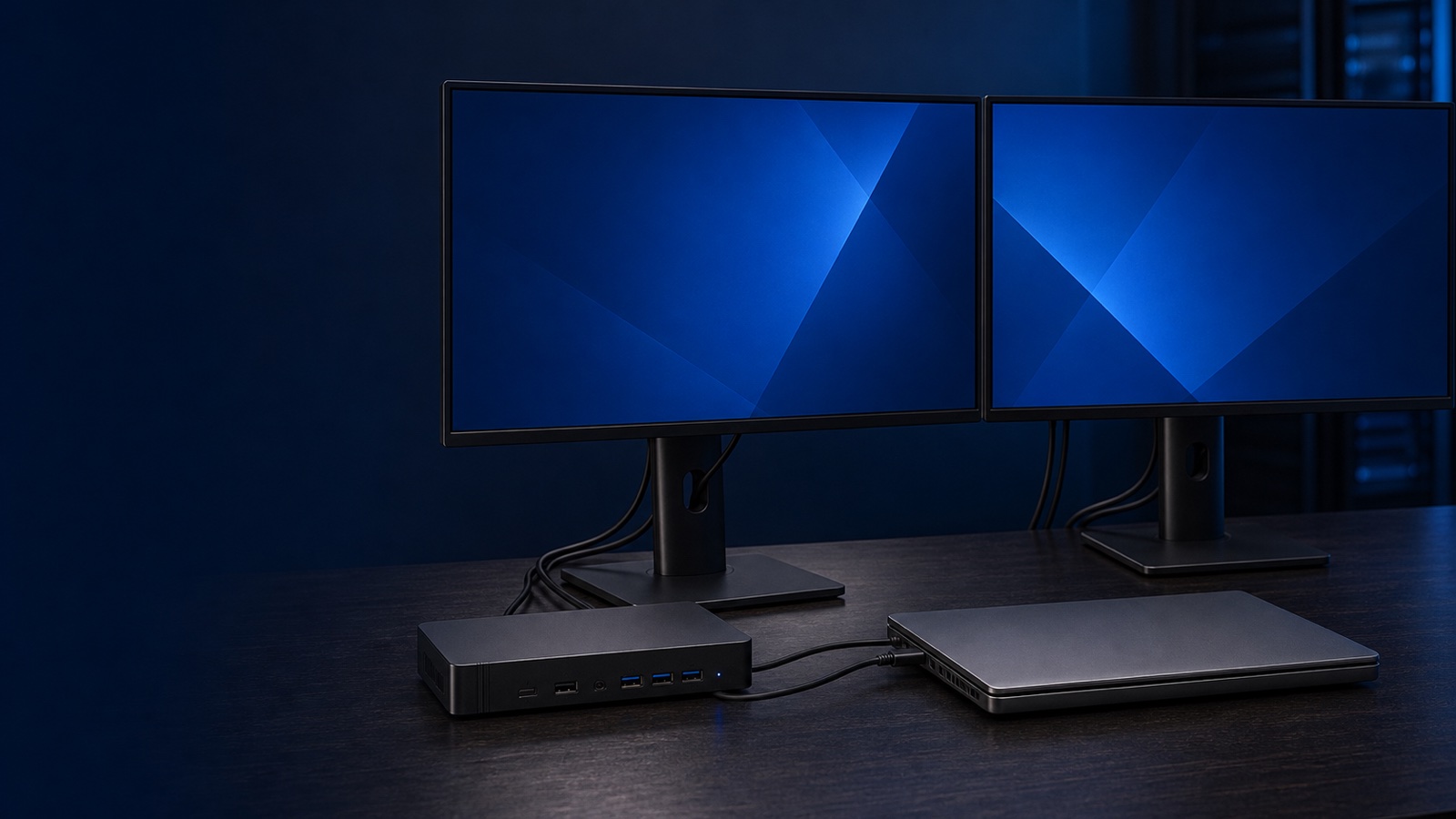
A desk standard is one of the highest-leverage decisions an IT team makes, and one of the most overlooked. When every Latitude and Precision in the fleet docks the same way, drives the same monitors, and updates through the same tooling, your help desk stops fielding "why won't my second screen work" tickets and your asset records stop fragmenting into dozens of one-off accessory SKUs. The goal of dock and monitor selection is not to find the single best part; it is to define a small, deliberate matrix that covers every role you support while keeping spares, firmware, and procurement simple.
This guide walks through how to pair Dell docking stations and UltraSharp monitors to a Latitude and Precision fleet so the result is consistent, supportable, and defensible on a federal order.
Start with the laptop, not the dock
Every dock decision flows from the port and power profile of the systems you actually deploy. Pull your fleet inventory from OpenManage or your endpoint management platform and group machines by interface, because that determines which dock family fits:
- Latitude business laptops (5000/7000 series) typically standardize on USB-C and Thunderbolt 4, which makes them the natural match for Dell's WD and UD universal docks.
- Precision mobile workstations (3000/5000/7000 series) draw more power and often pair with discrete graphics, so they benefit from higher-wattage docks and Thunderbolt for full bandwidth to multiple high-resolution panels.
- Older or mixed inventory may still carry legacy USB-C without Thunderbolt; a universal USB-C dock keeps those endpoints in the standard without forcing a premature refresh.
Confirm the charging wattage each system expects. A mobile workstation that wants 130W or more will throttle or slowly drain if you hang it off an underpowered dock, and that single mismatch generates a steady trickle of "battery won't charge" tickets that look like hardware faults but are really a procurement error.
Pick a dock family and hold the line
Dell's current docking lines map cleanly to fleet roles. The WD series universal docks cover the mainstream Latitude population: single-cable USB-C connection, predictable display outputs, and Ethernet for environments that still require wired network access or MAC-based authentication. The UD series Thunderbolt docks serve Precision workstations and power users who need maximum display bandwidth and downstream device throughput.
The discipline that pays off is limiting yourself to one or two dock models, not five. A two-dock standard — one universal USB-C dock for laptops and one Thunderbolt dock for workstations — keeps these things manageable:
- Firmware. Dell publishes dock firmware and driver packages you can stage and deploy through your standard update workflow rather than chasing per-unit updates. Fewer models means fewer firmware baselines to track.
- Spares. A loaner drawer with two dock types covers nearly every desk. Swapping a dead unit becomes a two-minute desk-side fix instead of a parts hunt.
- Procurement. A short, stable accessory bill of materials is far easier to reorder and to justify to a contracting officer than a sprawl of one-off purchases.
For agencies with security requirements, validate that the dock's network and authentication behavior fits your posture, and document the firmware update path as part of your configuration baseline under frameworks like NIST 800-171.
Standardize the monitor on UltraSharp
Dell's UltraSharp (U-series) line is the right anchor for a professional desk standard. The panels are color-consistent, offer wide ergonomic adjustment, and many models include built-in USB-C connectivity and downstream hubs. That last point matters more than it first appears: an UltraSharp with USB-C power delivery can drive and charge some Latitude laptops directly, simplifying single-monitor desks down to one cable and no separate dock at all.
Define monitor tiers by role rather than buying one size for everyone:
- General office and contracting staff: a single 24" or 27" UltraSharp at QHD or 4K, sized to the work and the desk.
- Analysts, developers, and reviewers: dual 27" panels, or a single 34" curved ultrawide where a continuous workspace beats a bezel split.
- Precision workstation users (CAD, GIS, imaging, video): larger, higher-resolution UltraSharp panels where color accuracy and screen real estate are part of the job.
Hold resolution and connector choices steady within each tier. When every desk in a tier uses the same panel and the same cable, daisy-chaining, display arrangement, and docking all behave identically, and your imaging and setup documentation stays short.
Validate the full chain before you commit
Bandwidth is where good intentions break. A dock advertises a maximum display configuration, but the real ceiling depends on the laptop's port, the dock generation, and the resolution and refresh rate of each monitor. Before locking a standard, build one of each desk configuration and verify the entire chain end to end:
- Confirm each laptop tier drives its target monitor count at full resolution and refresh through the chosen dock.
- Verify charging holds under load — open the lid, run a representative workload, and confirm the battery gains rather than loses.
- Test the daisy-chain or multi-stream path if you rely on it, since that is the most common point of silent display loss.
- Capture the working firmware and driver versions and fold them into your gold image and OpenManage update policy.
Document the validated combinations as named bundles: laptop model, dock model, monitor model, cables. That bundle becomes the thing your help desk references, your imaging team builds against, and your purchasing team reorders — one row instead of a guessing game.
The takeaway
A standardized desk is a procurement and support strategy, not a shopping list. Anchor on the laptop's port and power profile, hold to one or two Dell docks, standardize the monitor on UltraSharp tiers by role, and validate every chain before you scale it. The payoff is fewer tickets, cleaner asset records, simpler firmware management, and a refresh cycle you can plan instead of react to.
If you want help mapping your Latitude and Precision fleet to a clean dock-and-monitor standard — and quoting it by RFQ — request a quote or talk to a Uniqcli specialist. We will help you build a desk standard your help desk and your contracting officer will both thank you for.